> ## Documentation Index
> Fetch the complete documentation index at: https://honeydew.ai/docs/llms.txt
> Use this file to discover all available pages before exploring further.
# PingIdentity SSO Integration (SAML)
This guide shows how to configure [PingIdentity](https://pingidentity.com/)
as a SAML single sign-on identity provider (IdP) for your Honeydew account.
Before completing this guide, you must verify ownership of any domains you want to associate with your SAML setup.
Create the Ping Identity SAML application.
1. Go to **Applications** > **Applications** and select **+** to add a new application.
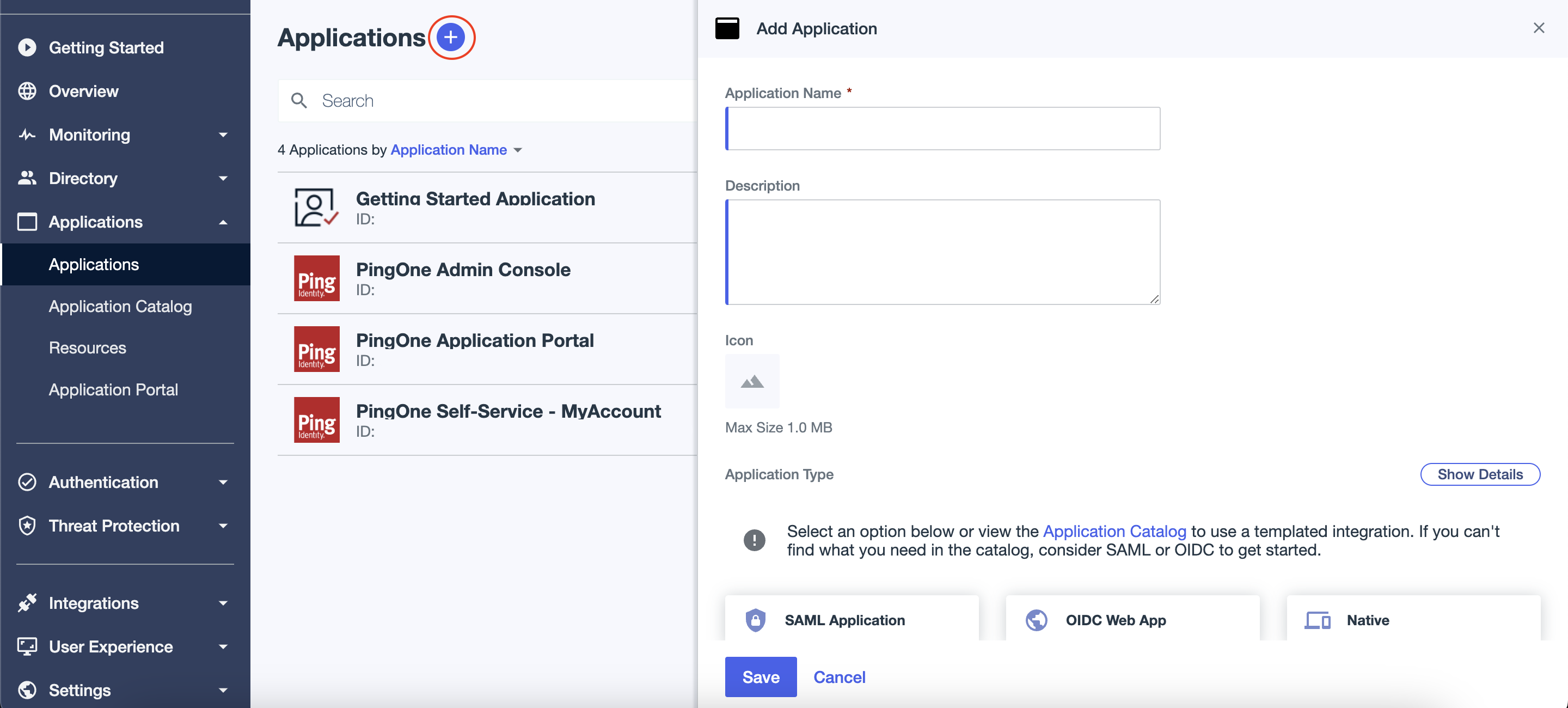 2. Choose a name for the application (e.g. **Honeydew**), add an application icon (you can use the Honeydew
[logo](https://mintlify.s3.us-west-1.amazonaws.com/honeydew/images/HoneydewLogo.png))
select **SAML Application** Type and click **Configure**.
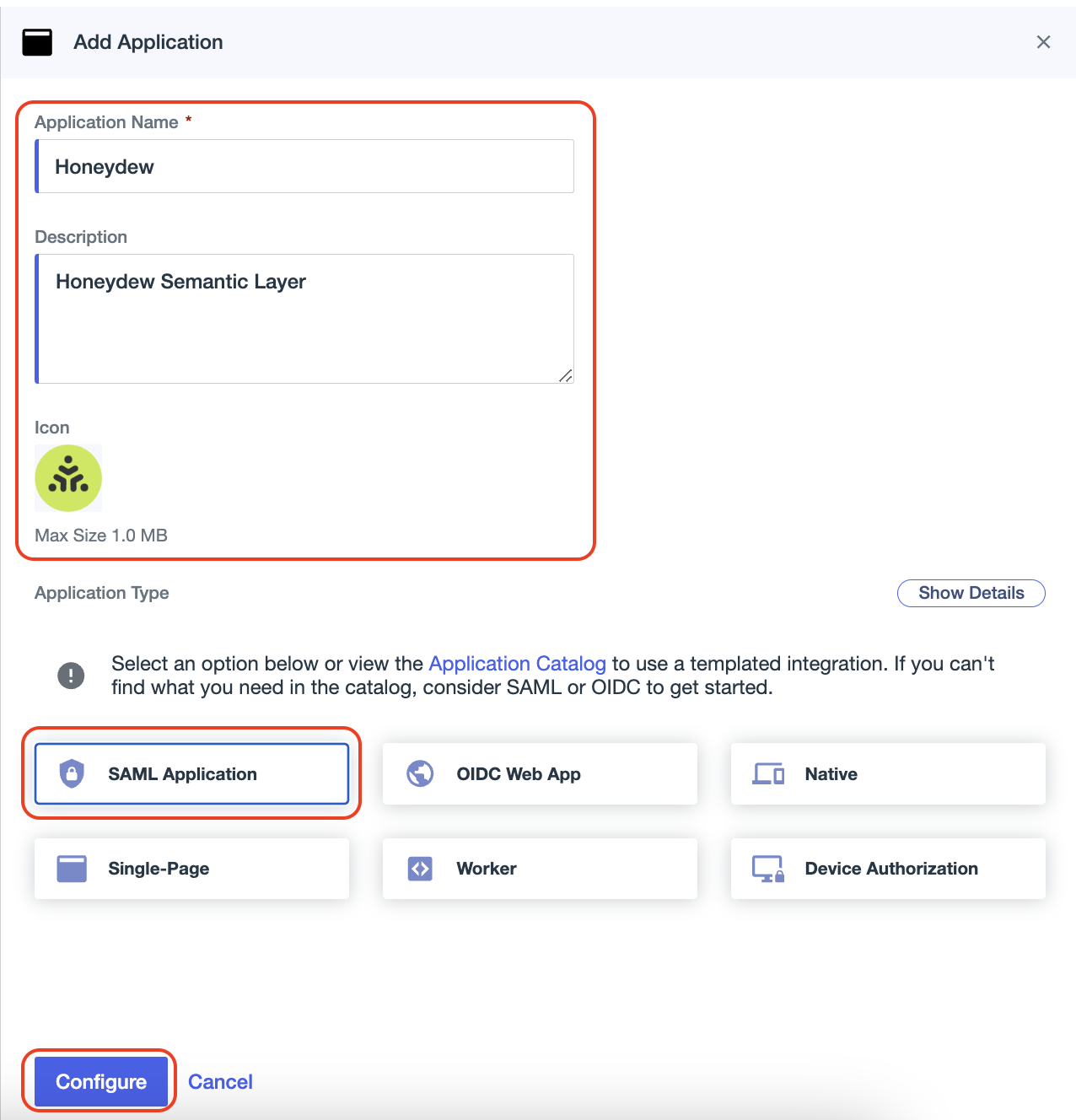
2. Choose a name for the application (e.g. **Honeydew**), add an application icon (you can use the Honeydew
[logo](https://mintlify.s3.us-west-1.amazonaws.com/honeydew/images/HoneydewLogo.png))
select **SAML Application** Type and click **Configure**.
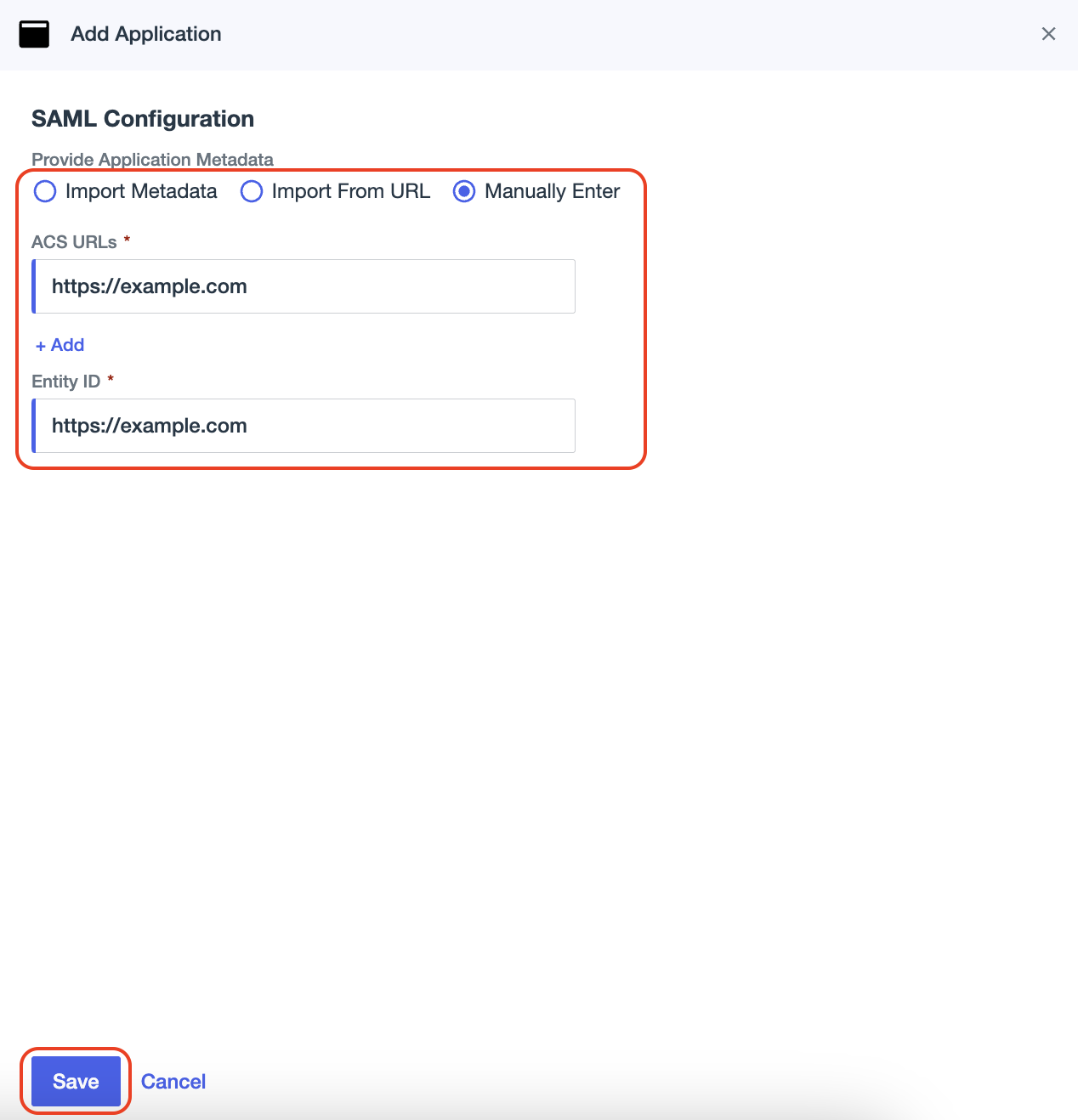
 3. In **SAML Configuration**, under **Provide Application Metadata**, choose **Manually Enter**.
In the **ACS URLs** and **Entity ID** field add for now some dummy data, like `https://example.com`.
This data will be updated with the correct data in a subsequent step.
Click **Save**.
3. In **SAML Configuration**, under **Provide Application Metadata**, choose **Manually Enter**.
In the **ACS URLs** and **Entity ID** field add for now some dummy data, like `https://example.com`.
This data will be updated with the correct data in a subsequent step.
Click **Save**.
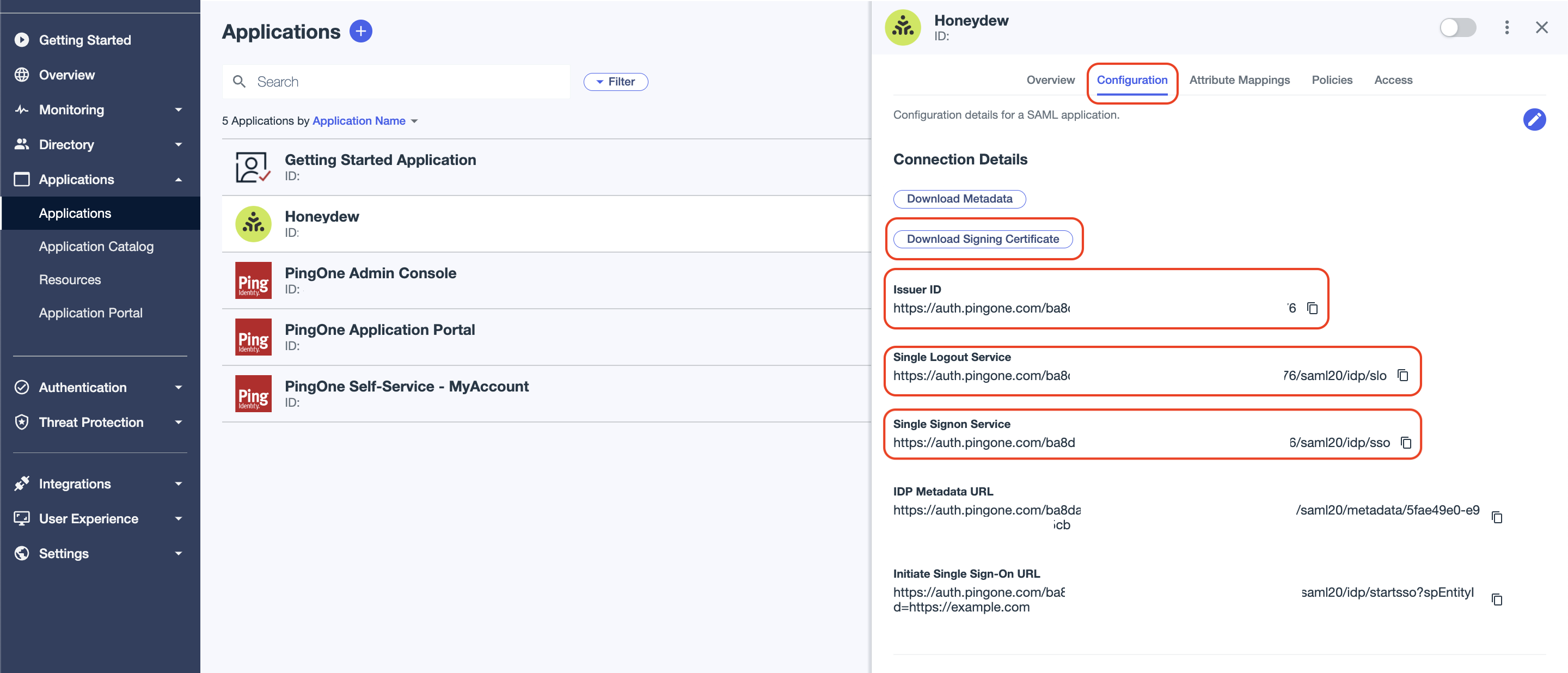
 4. Click on the newly created application, and go to the **Configuration** tab.
Save the following information as displayed in the **Configuration** tab:
* **Issuer ID**
* **Single Logout Service**
* **Single Signon Service**
This information will be needed once we configure SAML in Honeydew.
* Click **Download Signing Certificate**. In the drop-down menu, choose **X509 PEM (.crt)**.
A `.crt` file will be downloaded. This certificate will be required for the configuration in Honeydew.
4. Click on the newly created application, and go to the **Configuration** tab.
Save the following information as displayed in the **Configuration** tab:
* **Issuer ID**
* **Single Logout Service**
* **Single Signon Service**
This information will be needed once we configure SAML in Honeydew.
* Click **Download Signing Certificate**. In the drop-down menu, choose **X509 PEM (.crt)**.
A `.crt` file will be downloaded. This certificate will be required for the configuration in Honeydew.
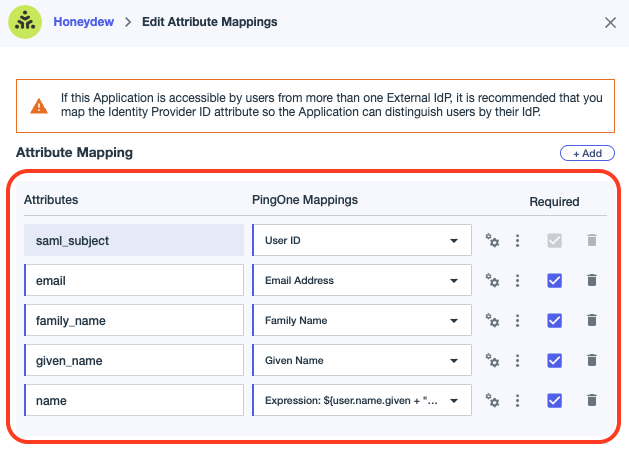
 5. Go to the **Attribute Mappings** tab. Add the following attributes:
* **saml\_subject** - mapped to **User ID**
* **email** - mapped to **Email Address**
* **family\_name** - mapped to **Family Name**
* **given\_name** - mapped to **Given Name**
* **name** - mapped to **Expression: `${user.name.given + " " + user.name.family}`**
5. Go to the **Attribute Mappings** tab. Add the following attributes:
* **saml\_subject** - mapped to **User ID**
* **email** - mapped to **Email Address**
* **family\_name** - mapped to **Family Name**
* **given\_name** - mapped to **Given Name**
* **name** - mapped to **Expression: `${user.name.given + " " + user.name.family}`**
 Now that we have our Ping Identity IdP server ready, we need to configure support for SAML in Honeydew.
Please pass the following information to your Honeydew contact or to [support@honeydew.ai](mailto:support@honeydew.ai):
* **Issuer ID**
* **IdP server URL**
* **Single logout URL**
* **Assertion signing certificate** - the certificate info you copied from the Ping Identity XML file
* **Email domain** used in your company's email addresses
You will receive back from Honeydew the following information:
* **Entity ID**: The unique name of the service provider (SP)
* **Location**: The location of the assertion consumer service
* **Sign On URL**
1. In Ping Identity, go to **Applications** > **Applications** and select your application name.
Select the **Configuration** tab and click **Edit**.
This is where we had entered mock data. We will now enter the correct data for this step:
* Paste the received **EntityID** information in the **Entity ID** field.
* Paste the received **Location** link in the **ACS URLs** field.
* Paste the received **Sign On URL** in the **Initiate Single Sign-On URL** field.
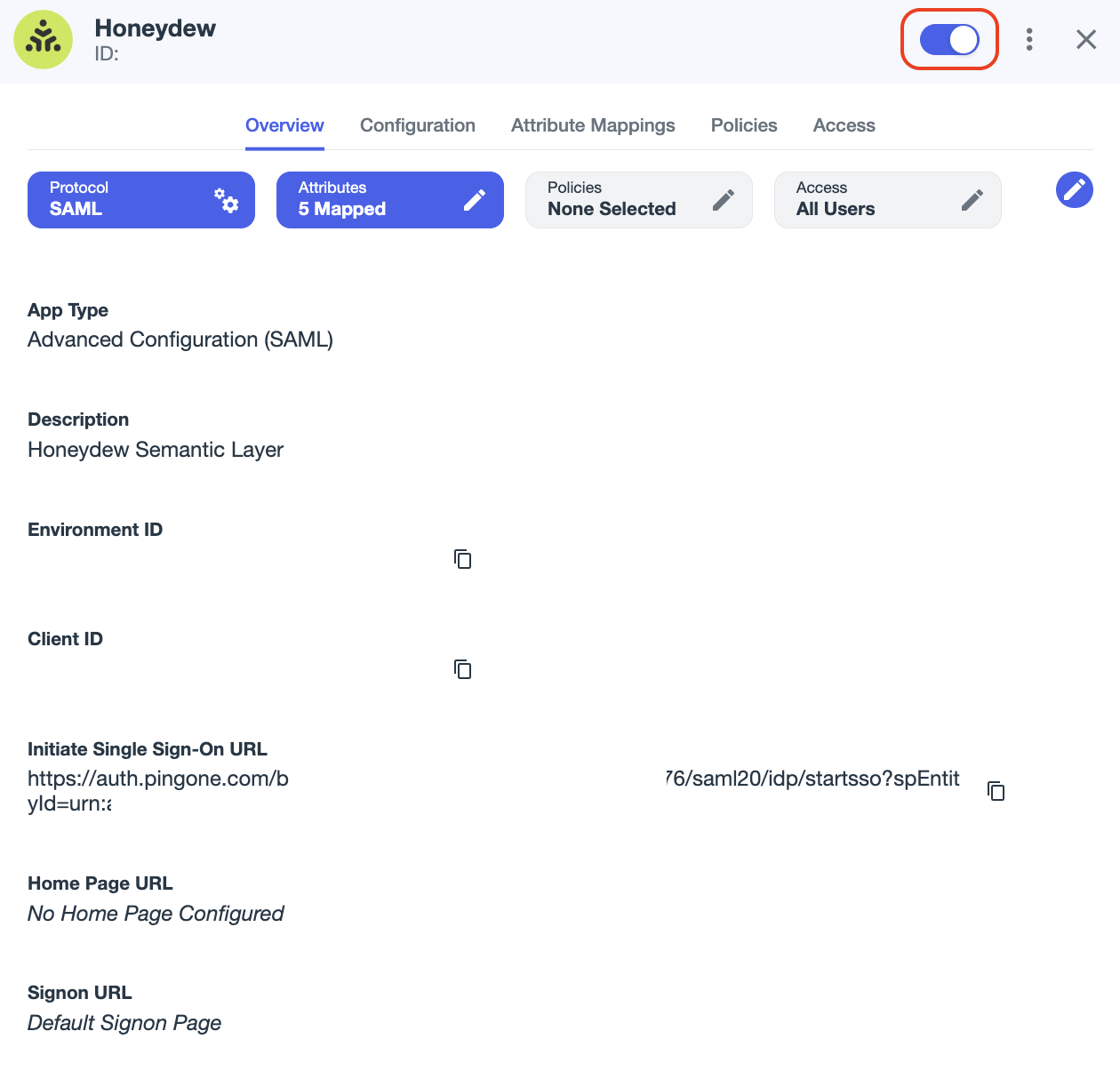
2. Click on the slider to enable the app.
Now that we have our Ping Identity IdP server ready, we need to configure support for SAML in Honeydew.
Please pass the following information to your Honeydew contact or to [support@honeydew.ai](mailto:support@honeydew.ai):
* **Issuer ID**
* **IdP server URL**
* **Single logout URL**
* **Assertion signing certificate** - the certificate info you copied from the Ping Identity XML file
* **Email domain** used in your company's email addresses
You will receive back from Honeydew the following information:
* **Entity ID**: The unique name of the service provider (SP)
* **Location**: The location of the assertion consumer service
* **Sign On URL**
1. In Ping Identity, go to **Applications** > **Applications** and select your application name.
Select the **Configuration** tab and click **Edit**.
This is where we had entered mock data. We will now enter the correct data for this step:
* Paste the received **EntityID** information in the **Entity ID** field.
* Paste the received **Location** link in the **ACS URLs** field.
* Paste the received **Sign On URL** in the **Initiate Single Sign-On URL** field.
2. Click on the slider to enable the app.
 3. Notify your Honeydew contact or [support@honeydew.ai](mailto:support@honeydew.ai) that the configuration is complete.
4. Once the configuration is complete, you can test the SAML setup by logging in to Honeydew.
Any user with an email address that matches the domain you provided will be able to log in using PingIdentity SAML.
Upon login they will be redirected to the Ping Identity login page.
3. Notify your Honeydew contact or [support@honeydew.ai](mailto:support@honeydew.ai) that the configuration is complete.
4. Once the configuration is complete, you can test the SAML setup by logging in to Honeydew.
Any user with an email address that matches the domain you provided will be able to log in using PingIdentity SAML.
Upon login they will be redirected to the Ping Identity login page.